


Dell Serial Number Lookup: Verify, Decode & Check Warranty for Your Devices
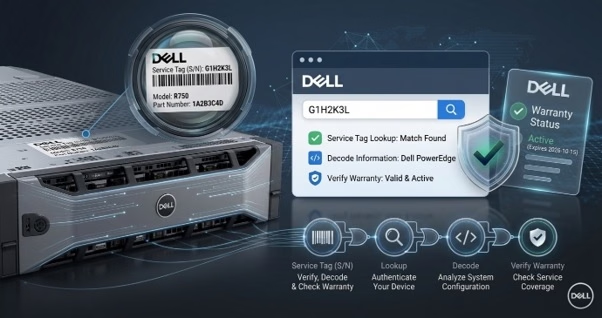
Key Takeaways
- A Dell serial number, which Dell calls the Service Tag, is the unique identifier that ties one physical device to its factory configuration, warranty entitlement, and service history.
- A Service Tag alone will not source a part. You also need the model and the component part number (DP/N) it resolves to.
- A reliable Dell serial number lookup takes four moves: read the label or pull the tag in software, enter it on Dell Support, confirm the model and configuration, then finish with a Dell warranty check.
- The Service Tag is a database key, not a coded string. The decodable data lives on component PPID labels, which reveal country of origin, part number, supplier, and manufacture date.
- The lookup returns the as-shipped configuration, which is the single most useful record for choosing compatible memory, drives, batteries, and power supplies.
- Always verify a Dell serial number before you buy used or refurbished hardware. A tag that returns no record, contradicts the BIOS, or shows the wrong model is the clearest warning sign.
Why Your Dell Serial Number Matters More Than You Think?
If you manage business hardware, the Dell serial number on the bottom of a Latitude or the pull-out tag of a PowerEdge server is the most useful string of characters you own. That short code unlocks the exact factory configuration of the unit in front of you, the warranty attached to it, and the replacement parts that will actually fit.
Most readers arrive with a narrow question: How do I run a Dell serial number lookup, and is this machine still under warranty? The bigger value, though, is the chain the serial number starts:
Dell Serial Number → Product / Model Number → Device Type → Compatible Part → Dell Product Category
Each arrow removes guesswork.
Have a Service Tag in hand? Send your Service Tag to our hardware specialists and get the exact model, compatible part numbers, and current stock in one reply. Contact us to start.
What Is a Dell Serial Number?
A Dell serial number is the unique identifier Dell assigns to a single physical unit at the factory. Dell calls it the Service Tag, and it is a seven-character alphanumeric code. Two identical OptiPlex desktops from the same production line share a model name and a configuration, yet they never share a Service Tag. That one-to-one relationship makes the Dell product serial number authoritative for every warranty and support question you will ask about the unit.
1. What The Service Tag Identifies?
The Service Tag indexes Dell’s manufacturing and support records. Submit it to Dell Support and the system returns everything bound to that unit: the exact model, the ship date, the original components, the warranty type and end date.
2. What The Service Tag Does Not Identify?
A Service Tag is not a part number, and it does not describe compatibility on its own. Parts are organized by model and by Dell part number (DP/N), never by individual units. Two Latitude laptops with the same model name can still take different batteries or display panels, and only the configuration record tells them apart.
3. Service Tag vs. Express Service Code
Many Dell labels also print an Express Service Code (ESC), a 10- or 11-digit number. The ESC is simply the Service Tag converted into digits so callers can enter it on a phone keypad. Both point to the same record, but online tools expect the Service Tag. One caution: the tag links to your account, so never post it publicly in forums or on social media.
Where to Find the Dell Serial Number on Your Device?
Where the Service Tag sits depend on the form factor, and you almost always have two routes: the printed label and the software read-out. Dell’s Service Tag guide covers every product family.
1. Laptops And 2-in-1s
On Latitude, Inspiron, XPS, Vostro, and Precision mobile systems, the label sits on the bottom cover. Older models with removable batteries often repeat it inside the battery bay.
2. Desktops, All-in-Ones, and Workstations
OptiPlex and Vostro desktops carry the tag on the top, side, or rear panel, and many towers place a second sticker under the system badge. Precision tower workstations print it near the rear I/O, while all-in-ones usually hide it behind the stand.
3. PowerEdge Servers And Storage
Rack-mount PowerEdge servers carry a pull-out information tag on the front of the chassis that prints the Service Tag. Storage systems such as Power Store, Unity, and Power Max use a serial number or PSNT instead, while VxRail nodes and network switches show the tag on pull-tabs, the web interface, or the CLI.
4. Monitors, Docks, And Peripherals
Monitors and docking stations print a Service Tag and a separate serial number on the rear label or under the stand mount. Keyboards, mice, headsets, and external drives have no Service Tag, so use the model name on Dell Support.
5. Pulling The Serial Number in Software
Pull the Dell serial number with one of these methods:
- Windows: Run Get-CimInstance Win32_BIOS | Select-Object Serial Number in PowerShell, or run wmic bios get serialnumber in Command Prompt on systems that still include WMIC.
- Linux: Run sudo dmidecode -s system-serial-number.
- BIOS Or UEFI Setup: Press F2 at the Dell logo and check the overview page, which helps when the operating system fails to load.
- iDRAC On PowerEdge: The system summary page shows the tag, even for a server in a remote data center.
How to Run a Dell Serial Number Lookup (Step by Step)
Follow the steps in order, because each one produces the input for the next.
· Step 1
Record the Service Tag exactly as printed. Never substitute visually similar characters, because 0 and O, 1 and I, and 8 and B trip up almost everyone.
· Step 2
Go to Dell Support (dell.com/support) and enter the Service Tag under Identify your product or search support.
· Step 3
Confirm the product name and model on the overview page. If the result does not match the label on the chassis or the seller’s listing, stop and investigate.
· Step 4
Click View system configuration to see the original components the unit shipped with.
· Step 5
Click View Warranty Details to check the coverage type, the start and end dates, and any add-on services.
· Step 6
Note the device type and generation, then move from the model and part numbers to a parts catalog.
· Step 7
Document the result: Service Tag, model, warranty end date, location, and owner.
How to Decode a Dell Serial Number?
A Dell serial number decoder sounds more mysterious than it is. The Service Tag carries no hidden meaning, but the component labels inside the machine do.
1. Why The Service Tag Has No Hidden Code
Dell generates Service Tags as unique record keys, not as structured strings that encode a plant or a date. The meaning lives in Dell’s database, which is why an online lookup is required.
2. Decoding The PPID Label
This is where a Dell serial number decoder actually works. Motherboards, batteries, power supplies, drives, and displays carry a Piece Part Identification (PPID) label, and that label decodes cleanly. A typical PPID reads CN-0ABC12-12345-1A2-0123-A00 and breaks down as follows:
| Segment | Example | Meaning |
|---|---|---|
| Country of origin | CN | Where the part was manufactured |
| Dell part number | 0ABC12 | The exact component (DP/N) |
| Manufacturer ID | 12345 | The supplier that built the part |
| Date code | 1A2 | Year (last digit), month (1–9, then A–C), day (1–9, then A–V) |
| Sequence number | 0123 | The unit’s position in the production run |
| Revision | A00 | Hardware revision level |
In this example, the date code 1A2 means October 2 in a year ending in 1.
3. What Decoding Gets You and What It Does Not
- The Dell part number gives you the tightest compatibility match available for a replacement component.
- The date code offers a fast sanity check on a seller’s age claim and a rough guide to remaining service life.
- A PPID decode does not reveal the system model or warranty status, so always pair it with a Dell serial number lookup.
Dell Model Number Lookup vs. Dell Product Number Lookup
A Dell model number lookup and a Dell product number lookup answer different questions, and knowing the difference separates a clean parts order from a return.
| Identifier | What It Identifies | Example |
|---|---|---|
| Service Tag | One specific unit | 7 characters, e.g., 5XJ2K73 |
| Model name | Product family and generation | Latitude 5420, PowerEdge R740 |
| Regulatory model | Certified chassis design | Marked “Reg Model” on the label |
| Part number (DP/N) | One orderable component | Short code, often starting with 0 |
1. Product Line and Model Name
The model name, such as Latitude 5420, OptiPlex 7090, or PowerEdge R740, identifies the product family and generation. A Dell model number lookup returns this value, and it narrows compatibility to one platform.
2. Dell Part Number (DP/N)
A Dell product number lookup usually returns the orderable part number for a single component, which is the value you put on a purchase order. The model describes the platform, while the part number describes something you can actually buy, such as a specific battery, motherboard, or power supply.
3. How They Relate in Practice?
The Service Tag resolves to a model and configuration, the configuration tells you which part numbers are valid, and the part number is what you quote and buy.
How to Check Dell Device Warranty Status?
A Dell serial number lookup also answers one narrow but expensive question: if this unit fails tomorrow, who pays?
1. Run The Warranty Lookup
To check Dell device warranty coverage, enter the Service Tag on Dell Support and open the warranty section.
2. Read The Four Fields That Matter
- Warranty Status: Active or expired. An unexpected result often means the unit was resold across regions and needs an ownership transfer.
- Start And End Dates: Coverage usually runs from the ship date, not the date you deployed the unit.
- Service Level: Basic Hardware Service, ProSupport, or ProSupport Plus, plus on-site or mail-in response.
- Add-Ons: Accidental Damage Service, Keep Your Hard Drive, and extended terms can change what you are allowed to replace yourself.
3. When The Warranty Is Expired
You can buy post-warranty support, or you can self-maintain by stocking the parts that fail most often, such as server hard drives, power supplies, cooling fans, memory modules, and batteries. For a single repair, Dell also sells one-time support for service-expired products.
4. Bulk Warranty Checks Across a Fleet
A manual Dell warranty check works fine for one machine, but not for two hundred. Request a Warranty API key through Dell TechDirect with a business account. The API accepts up to 100 Service Tags per request and flags invalid or duplicate tags. One caution: reported dates may not match your contract, so reconcile them against purchase records.
5. Transfer Ownership and Register Used Devices
Bought a used or refurbished unit? Request an ownership transfer through Dell’s Support Services & Warranty page so coverage follows the device to you, including after a move to another country. Devices bought from a retailer also need product registration to validate their hardware coverage.
From Dell Serial Number to Compatible Replacement Part
The Dell serial number starts the chain, and a working machine ends it.
- Start with the Dell serial number.
- Resolve it to the model and original configuration through Dell Support.
- Identify the device type and generation. Drive trays and caddies, rails, and batteries changed between generations inside the same product line.
- Determine the subsystem you need: storage, memory, processors, power, cooling, controller, networking, or display.
- Match the Dell part number (DP/N) from the configuration record or from the PPID label on the failed component.
- Verify fitment: capacity and interface for drives, speed and rank for server memory, wattage and connector for power supplies, and firmware level for storage controllers.
- Order from the right Dell product category, then log the part number against the Service Tag so the next technician never repeats the lookup.
Two deeper walkthroughs help when the right part is not obvious: our guide to matching the right drive tray by server model, and our advice on buying refurbished servers without inheriting someone else’s problems.
Verification Best Practices for Procurement Teams and Resellers
If you buy, sell, or audit used Dell hardware, serial number verification acts as fraud prevention, not administrative busywork. If you also run HP or IBM hardware, our HP serial number lookup and IBM serial number lookup guides follow the same method on those platforms.
1. Verify Before You Pay, Not After Delivery
- Ask for photographs of the actual Service Tag labels rather than stock images.
- Run every Dell product serial number through Dell Support yourself, because anyone can edit a screenshot.
- Confirm that the returned model and configuration match the quote.
- Check for duplicate tags inside a batch, which point to relabeled or salvaged units.
- Compare the chassis label with the BIOS. A mismatch usually means a replaced motherboard, which the seller should disclose.
2. Keep A Serial-First Asset Register
Record the Service Tag, model, warranty end date, location, and owner for every device the moment it arrives. Pair it with a routine server maintenance checklist, and most emergency lookups disappear.
3. Know When to Escalate to Dell
If a tag returns no record, contradicts the physical label, or shows a different region or owner, stop and open a Dell support case before you deploy the unit.
Further reading
- IBM Serial Number Lookup Verify Decode and Check Warranty for Your Devices
- HP Serial Number Lookup: Verify, Decode, and Check Warranty for Your Devices
Final Thoughts
A Dell serial number is a small thing that carries a lot of weight. Read it correctly and it tells you what the machine is, who is responsible for fixing it, how long that responsibility lasts, and which parts will keep it running.
For IT Teams and Technicians Still Identifying Hardware
Send us the Service Tag and the model name, and our hardware specialists will confirm the exact part number your unit accepts. Contact us with the tag in hand.
For Buyers and Procurement Teams Ready to Order
Once the model is confirmed, browse our Dell product category to find compatible Dell parts, replacement hardware, and complete Dell devices matched to your exact configuration. Buying for a fleet refresh, a spares pool, or reseller stock? Send the list through our bulk quote form for volume pricing and purchase order terms.
Frequently Asked Questions
- How do I find my Dell serial number?
Check the physical label first: the bottom cover on laptops, the top, side, or rear panel on desktops, and the pull-out information tag on PowerEdge servers. If the machine boots, check BIOS (F2), PowerShell, or Dell Support Assist.
- Is the Dell Service Tag the same as the serial number?
Yes. For complete Dell systems, the Service Tag is the serial number. Monitors, docks, and individual components may also carry a separate serial or PPID.
- How do I check if my Dell device is still under warranty?
Run a Dell warranty check on Dell Support by entering the Service Tag and opening the warranty section. For large fleets, use Dell Tech Direct to automate the checks.
- Why does my Dell serial number return no results?
Most failed lookups come from a mistyped character such as 0 for O, a blank tag after a motherboard replacement, or a unit registered in another region. Verify the tag in BIOS, try the Express Service Code, and contact Dell support if it still fails.
- Can I identify compatible replacement parts from a serial number alone?
Not directly. Resolve the Service Tag to its model and original configuration first, then use that record, or the PPID label on the failed part, to find the valid Dell part number.
- Can a Dell serial number tell me when a device was made?
Not on its own. No Dell serial number decoder can pull a build date from the Service Tag. The lookup shows the ship date, while the date code on a component’s PPID label shows the year, month, and day that part was manufactured.
- How many characters is a Dell serial number?
A Dell Service Tag is a seven-character alphanumeric code, and the Express Service Code is a 10- to 11-digit numeric version of it.
- What does “you are not authorized to view this product” mean?
Dell ties many Service Tags to the registered owner’s account and hides the details from other users. Sign in with the owning account, or request an ownership transfer if you bought the unit used.
Categories


tags

Expert team support
We accept POs from fortune 1000 companies, government agencies, defense, schools and hospitals.
Do you need advice on buying or selling hardware? Fill out the form and we will return.

Sales & Support
(855) 483-7810
We respond within 48 hours on all weekdays
Opening hours
Monday to thursday: 08.30-16.30
Friday: 08.30-15.30



